How to add DuckDuckGo (noai) to Google Chrome and Brave
(Also, see my similar post about doing this for Vivaldi - https://infosec.exchange/@scottwilson/115725021729571844, and for Firefox - https://infosec.exchange/@scottwilson/115725250696632578)
If you prefer an AI-free DuckDuckGo Search experience, you can use noai.duckduckgo.com instead of on duckduckgo.com. Searching on noai.duckduckgo.com works the same as search on duckduckgo.com, except all AI features are turned off and AI-generated images are filtered out of results by default.
NOTE: Truly, for better privacy, consider switching to Firefox, LibreWolf, Vivaldi, Brave, or Tor.
1. In Google Chrome or Brave, go to Settings, then Search Engines.
2. Click "Manage search engines and site search".
3. Scroll down to the "Site search" section, and lick the "Add" button.
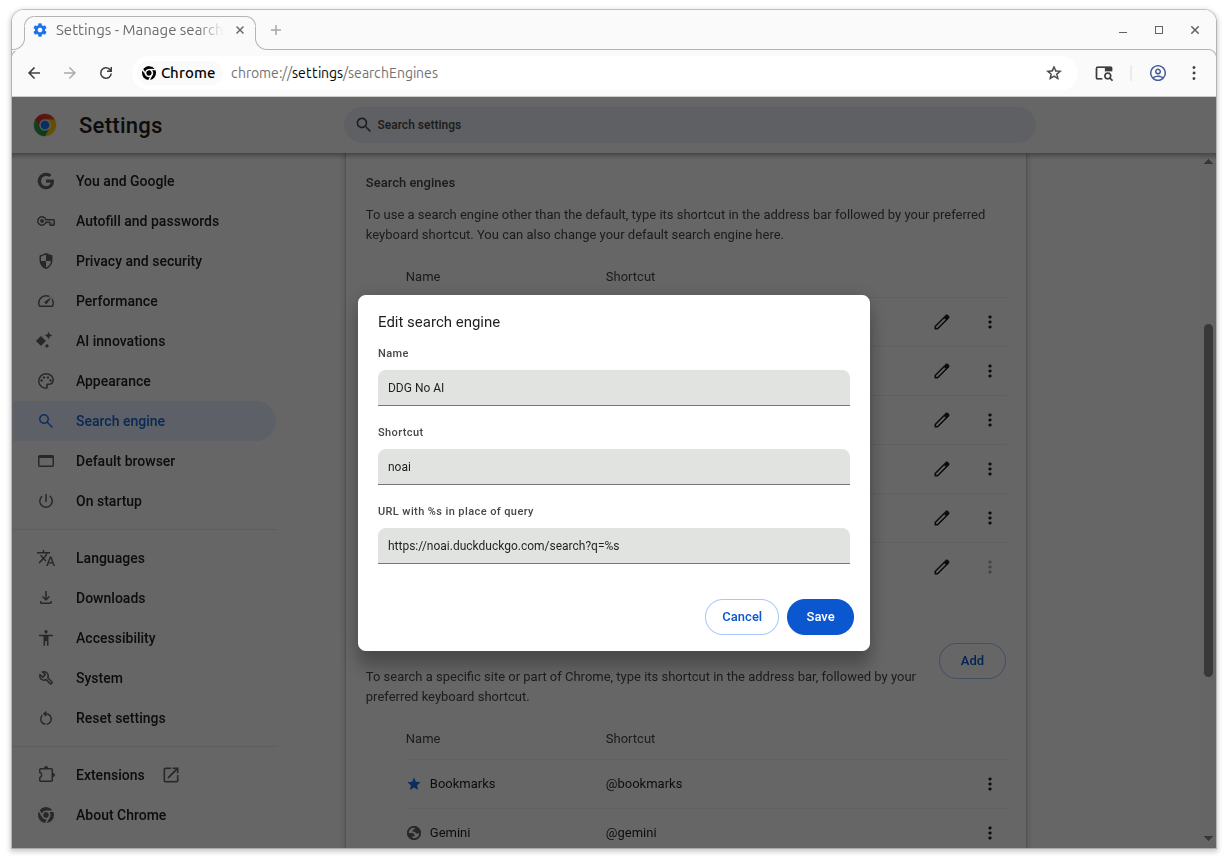
4. Give it a meaningful name and nickname, and add "https://noai.duckduckgo.com/search?q=%25s" in the URL field.
5. Click "Add", then scroll up a little to the "Search engines" section. Find your new entry, click the three dots next to it, and select "Default" to make this the default search engine.
6. Exit Settings.
#search #ai #privacy #google #chrome #googlechrome #brave
Thanks to: @voltooidverledentijd
References:
- https://voltooidverledentijd.noblogs.org/post/2025/11/23/how-to-add-duckduckgo-noai-to-firefox/
- https://duckduckgo.com/duckduckgo-help-pages/ai-features/about-noaiduckduckgocom